

Helping thousands of doctors make it home for dinner
 PhraseExpander has allowed me to write more detailed notes in a shorter amount of time, and the creation of custom forms for specific chief complaints prevents me from forgetting to ask key questions while taking a history.— Ari Kounavis, M.D., Pediatric Allergy/Immunology

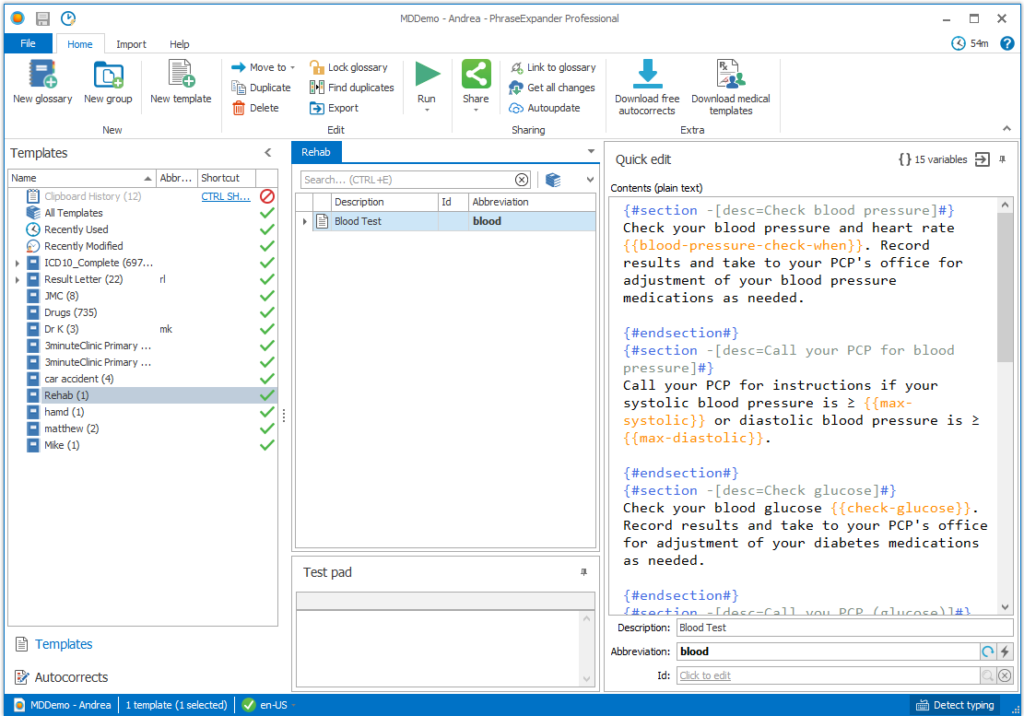
Design powerful templates that adapt as you fill them in
Get instant access to all your common terms and formulas
Store all your medical terms, common formulas and templates in a single place and pull them up instantly, by typing an abbreviation.
PhraseExpander shows suggestions as you type, in any section of your EMR, so you can:
Autocomplete medications, drug names or any long term that you often write when interviewing patients.
Pull up customizable templates that you can edit very quickly, thanks to our input forms. This will prevent you from making embarrassing mistakes, and inadvertently sharing confidential information – which often happens when copying, pasting and then editing an existing note.
Use dynamic forms and macros and gain flexibility in designing your templates by adding branching logic, calculating scores, inserting custom data (like the current date), or opening applications and websites.

Now we can make changes to our documentation without involving IT
 PhraseExpander has become an indispensable tool for our organization. It has allowed our team to improve the content of our medical documentation while also reducing the time spent. These goals had always appeared to be at odds with each other prior to the utilization of PhraseExpander. Another benefit of PhraseExpander is that it allows individual departments to make immediate changes to our documentation without the added cost and time associated with involving our IT department.— Matthew Curran, PTA, CEES, JUPITER MEDICAL CENTER
All your templates are available in a single place for easy editing
Bring them with you when you move between Hospital, Practice or EMR
Universal Templates that work in any EMR
There are many advantages of PhraseExpander templates over EMR built-in templates:
Use PhraseExpander to create a structured note inside any text field of your EMR
Your templates stay with you and save you time, whatever EMR you are using.
Even if your EMR has some sort of autocompletion (like Epic Smart phrases), PhraseExpander can provide with additional boost by working in any section of your EMR and providing a totally unmatched flexibility in templates.
It also works in any other application, like Microsoft Word, any browser, your email program. This makes it easy to extend the usage of templates to your staff.
Use it together with your dictation system (e.g. Dragon Naturally Speaking) for improved speed and accuracy.
Install PhraseExpander on many PCs, sync all your office computers and use your templates from anywhere in your office.
Automatically calculate scores and perform tests by gathering inputs and letting PhraseExpander calculate the results.
You haven’t studied medicine to drown in paperwork. Get your precious time back
Here’s how PhraseExpander can save you at least 1 hour per day
PhraseExpander is the ONLY text expander designed for Doctors
Stop hacking your way to faster notes and using tools not designed for you.
We have spent hundreds of hours interviewing doctors to understand what they need, and created a tool that fits you like a tailor-made Italian suit.
Don’t hack a solution that is not a good fit for you and ends up wasting your time.
Import the data you already have
If you have data stored in Word, Excel or other generic text expansion software, you can import it into PhraseExpander. You can also analyze your documents and extract your most used terms and phrases.
Build your templates in a few minutes even if you are not an IT person
Starting from a document you are using frequently, you can templatize it in a few minutes. Then you can quickly pull it up, ready to be customized, in any section of your EMR. This puts an end to tedious copy & paste and the risk of sharing sensitive information.
Your charting will read like handwritten notes
Thanks to customizable templates, you can finely tune your templates and the result is a note that reads as if you typed it yourself. For example, you can adapt the gender of an entire note with a single click.
Universal autocorrect & autocomplete
Autocorrects correct spelling mistakes and typos, no matter what application you are typing in.
PhraseExpander also autocompletes long and hard to spell terms, as you type.
Easily share templates in your practice or hospital
Once you have set up your templates, it’s easy to share them with other doctors in the practice or your staff.
Your templates stay with you
Even if you work at multiple clinics, no matter which EMR you are using, you can use your templates in any EMR.
Save time and stress over transcription services
Once you have set up your templates, you will find the new system much more reliable (and stress-free) than having to review the transcribed notes.
Medical templates ready to use
Check our exclusive collection of premade medical templates, done by other physicians like you.
Video tutorials & outstanding support
Our videos and extensive knowledge base will quickly turn you into a master.
And if you have questions, you’ll get a personal reply in just a few hours.Use dynamic forms and macros for greater customization
PhraseExpander dynamic forms save a tremendous amount of time by creating completely adaptable templates.
“My templates read like my handwritten notes”
 PhraseExpander has revolutionized how we have done notes here and lets us make good readable notes quickly, instead of skimping and turning in short notes that don’t say much.— Matthew Kreth, M.D., PEDIATRIC PULMONOLOGY FELLOW CHILDREN’S OF ALABAMA
In March, our doctors saved
Typos
Hours
Keystrokes
Start your free 21-day trial today
Break free from paperwork and breeze through your charts!